Connecting an additional user Onyx V5 pc that's on a different network to the master PC requires a few additional steps.
Onyx V5 connects to a remote database using SSH, the software to accomplish this is provided for you when you install Onyx V5.
NOTE, it is strongly recommended that you obtain a static public ip address from your ISP, think of this as your address on the internet, the remove PC must be able to find your master PC's router across the internet, and it does this by using the public IP address, if this address randomly changes, it will not work reliably. Most high speed internet already uses static public ip addresses, but it's worth double checking with your ISP first.
Setting up SSH (Master PC)
Type SSH Control Panel into the Windows Search Bar, a program will start. This program makes changes to your PC that require additional user permissions, Windows will ask you to confirm that you want to allow this. Please allow the program to run. Once running you will see the following screen:
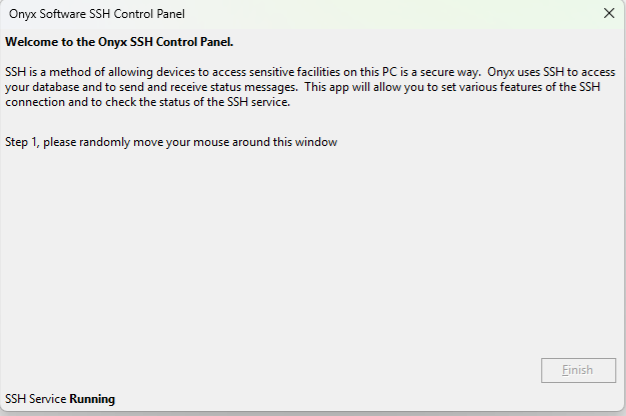
Step 1 asks that you randomly move your mouse around the form, this is used to create a random number, which is used to create encryption tokens. Moving your mouse will result in the following screen:
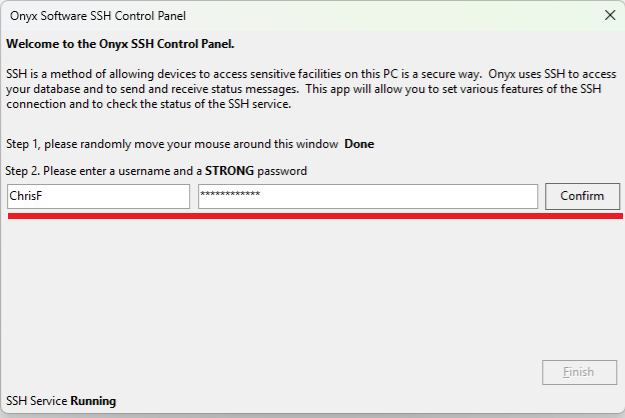
Notice that you can now enter a username and password. These are set by you, IMPORTANT, please enter a secure password, a weak password will potentially expose your PC to security exploits.
Press Confirm, you will now see:
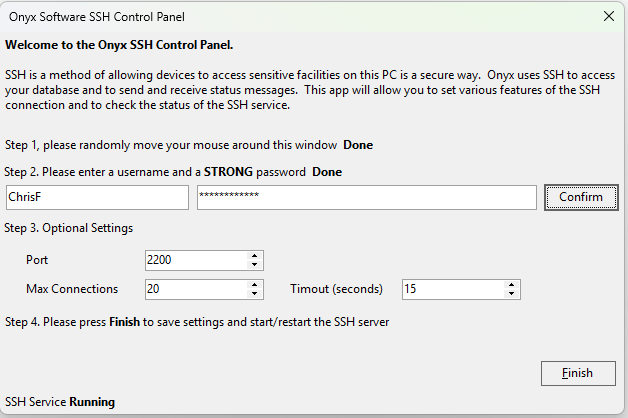
The defaults should be left as they are, unless you have software already using port 2200.
Make a note of these settings as you will need them.
Press Finish and you will see a confirmation message:
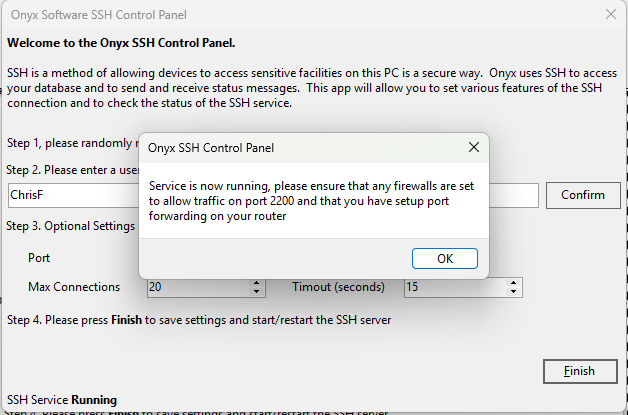
The SSH service is now running on the Master PC, and is waiting for SSH connections on port 2200 (or whatever you set if you changed it).
However, for this to work, your router needs to be told which PC it should forward the remote connection to, this is done by setting up port forwarding in your router.
This can seem complex, but it's usually pretty straightforward, conceptually, think of your router as the doorman to a large hotel, with each room being a device connected to the router. When a visitor to the hotel wants to talk to John, the doorman looks in his list, sees that John is in room 2200, and sends the caller to the correct room. This is what the router is doing, it sees a connection on port 2200, it looks in it's port forwarding list, sees that any connections on port 2200 should be sent to the PC that is connected on 192.168.1.23 (for example) and forwards the connection to the correct PC.
It is not possible to describe how to set port forwarding on every available router, so please google Port Forwarding and the name of your router, you should find some YouTube videos.
To check that everything is working correctly, please go to https://canyouseeme.org/ and enter port 2200 (or whatever you used if you changed it). If the connection is correctly forwarded by your router, and isn't prevented by a firewall, you will see Success on the webpage. You will only be able to proceed to the next step when this step is working correctly.
Note, most modern routers will be able to set a port forward rule to a PC name, so if the PC's internal IP address changes, the connection will still be sent to the correct PC. If your router doesn't support this, and asks for the IP address of the PC to forward to, then please first set the PC to a static internal IP address, again, search on Google for this but be sure to search for internal ip address.
On the Remote PC.
Now that you have the SSH server running, and you get a success message when you check https://canyouseeme.org/ you can move to the remote PC and setup the connection. You'll be pleased to know that this is the easy bit.
Install Onyx V5 in additional user mode, when you start Onyx you'll be asked to set the connection details (type Select Server into the command bar in Onyx if needed), please select Additional User PC - Connect over internet
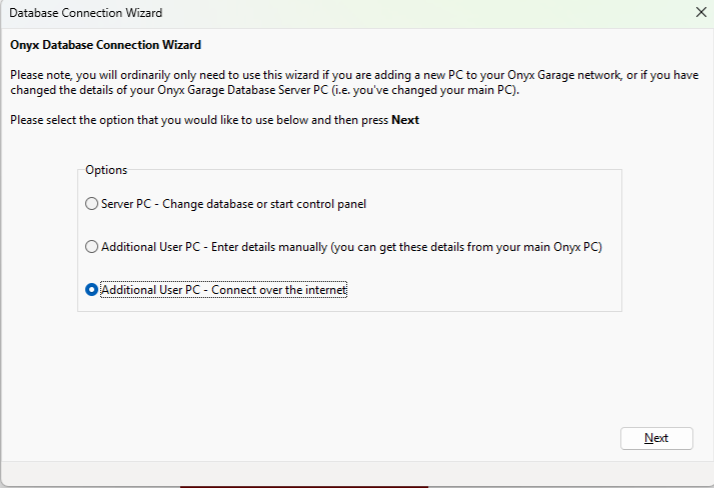
Press Next:
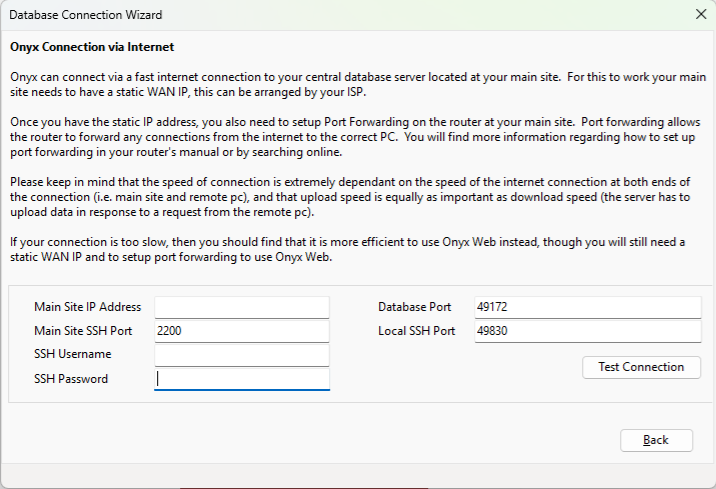
Enter the SSH Username,Password and Port that you set on the Master PC. The Main Site IP Address is your main site's public IP address, you can obtain this by visiting https://canyouseeme.org/ using a PC connected to the main site's router.
Press Test Connection and that should be it.